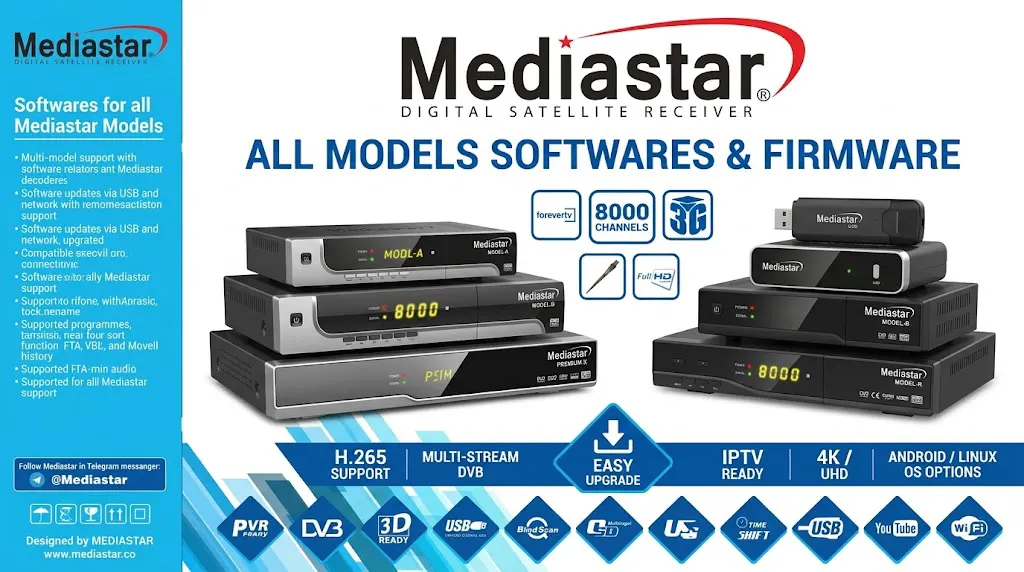
DOWNLOAD MEDIASTAR SATELLITE DECODER SOFTWARE FOR ALL MODELS (COMPLETE GUIDE)
Is your Mediastar decoder freezing, showing “No Signal” on channels that used to work, or missing new channels your friends are already watching? Before you spend money on a new receiver, try a software update.
Most Mediastar problems are fixed by installing the latest software (also called firmware) for your specific model. In this guide, we explain what Mediastar software is, why you need it, how to download the right file for your decoder, and how to install it safely.
WHAT IS MEDIASTAR DECODER SOFTWARE?
Every Mediastar receiver runs on built-in software that controls how it finds channels, displays the program guide, plays video, and connects to your dish. Mediastar releases updated versions of this software from time to time to improve performance and fix bugs.
There are usually two kinds of files people look for:
- Firmware (software) update: The main system file that runs your decoder. Updating it improves stability, adds features, and fixes known problems.
- Channel list (also called a settings file or “Sortie” file): A file that loads the latest channels, frequencies, and positions onto your decoder so you don’t have to search for them one by one.
WHY YOU SHOULD UPDATE YOUR MEDIASTAR DECODER
- Fix freezing and hanging: If your decoder gets stuck, restarts by itself, or responds slowly to the remote, a software update often solves it.
- Restore missing or scrambled channels: Channels change frequencies, and older software may fail to pick up the change. An update helps your box keep up.
- Better picture and sound: Updates can improve audio sync, resolution handling, and HDMI compatibility with newer TVs.
- New features: Newer versions may add a better program guide, improved menus, recording functions, or support for more USB devices.
- Save money: A software update is free. A new decoder is not.
POPULAR MEDIASTAR MODELS
Mediastar has produced many receivers over the years, ranging from basic standard-definition boxes to HD and 4K units. Some well-known models include:
- MS-4030 and MS-4030 Pro (4K Ultra HD receivers)
- MS-Mini 2727 (compact HD receiver)
- Zenon and Phoenix (Android-based 4K units)
- Older HD and SD models that are still widely used in many homes
Because there are so many models, and each one has its own software, you must download the file made for your exact model. Software for one model will not work on another.
HOW TO FIND YOUR EXACT MODEL AND CURRENT VERSION
Before you download anything, note down these details:
- Model name: Check the front panel, the sticker at the back or bottom of the box, or the original packaging.
- Current software version: Press the Menu button on your remote, then go to System Information or Receiver Information. Write down the version number and date.
- Hardware version: Some models come in different hardware versions. If your sticker shows one, match it to the software file.
HOW TO DOWNLOAD MEDIASTAR SOFTWARE FOR YOUR MODEL
Step 1: Go to a trusted download source. Use the official Mediastar website or a reputable download page such as the Ogbeta Online software page. Avoid random file-sharing sites, since files there may be outdated, mislabeled, or infected with malware.
Step 2: Select your model. Find your exact model name from the list.
Step 3: Download the latest version. Check the release date and pick the newest one. If it is the same as, or older than, what your decoder already has, you may not need to update.
Step 4: Extract the file. Most downloads come as a .zip or .rar folder. Use a file manager on your phone or a program like WinRAR on your computer to extract it. Look for a file ending in .bin, .abs, .ssu, or a similar format.
HOW TO INSTALL THE SOFTWARE USING A USB FLASH DRIVE
What you need: a USB flash drive (2GB to 16GB works best), and a computer or phone with an OTG adapter to copy the file.
Step 1: Format the USB drive. Format it as FAT32. This is the format most decoders can read.
Step 2: Copy the software file. Paste the extracted file directly into the main folder of the USB drive, not inside another folder.
Step 3: Switch off your decoder. Turn it off from the standby button, then plug the USB drive into the USB port.
Step 4: Open the update menu. Turn the decoder on, press Menu, then go to Tools (or System), then Software Update (or USB Upgrade).
Step 5: Select the file and start. Choose the software file from the list and press OK to begin.
Step 6: Wait for it to finish. Do not switch off, unplug, or touch the decoder while the update is running. This can take a few minutes. When it is done, the box will restart on its own.
Step 7: Check the new version. Go back to System Information to confirm that the version number has changed.
HOW TO LOAD A NEW CHANNEL LIST
- Download the channel list file for your model and copy it to your USB drive.
- Plug the USB drive into the decoder.
- Go to Menu, then Tools, then USB, then Load Channel List (or Import Settings).
- Select the file and confirm.
- Wait for the decoder to reload and restart.
Tip: Save your current channel list to the USB drive first, so you can restore it if you don’t like the new one.
IMPORTANT SAFETY TIPS BEFORE YOU UPDATE
- Match the model exactly. Installing the wrong file can damage your decoder or leave it stuck on start-up.
- Keep power steady. A power cut in the middle of an update can corrupt the software. If light in your area is unstable, use a power backup or wait for a stable time.
- Back up first. Save your favorite channels and settings before you begin.
- Use a good USB drive. Old or damaged flash drives often cause failed updates.
- Never interrupt the process. Even if the screen looks frozen for a minute, be patient.
COMMON PROBLEMS AND QUICK FIXES
- Decoder doesn’t detect the USB drive: Try another drive, reformat it to FAT32, or use a different USB port.
- Software file doesn’t show in the menu: Make sure the file is in the main folder and has not been renamed or left inside a zipped folder.
- Update fails or the box won’t restart: Try again with a fresh download, or contact your dealer or Mediastar support for help with recovery.
- Channels are still missing after the update: Run an Auto Scan or load the latest channel list, then confirm that your dish is pointed correctly and your signal strength is good.
FINAL THOUGHTS
Keeping your Mediastar decoder up to date is one of the easiest ways to enjoy stable, high-quality satellite viewing without extra cost. Find your exact model, download the right software from a trusted source, and follow the steps carefully.
Need help finding the right file for your decoder? Visit Ogbeta Online today, and download the software for your Mediastar model.
Note: I left a placeholder for your download link, and I avoided listing specific version numbers or file names since those change often. Add your real links and current versions before publishing. I can also put this in a file if you’d like.
MediaStar Software Sept. 22, 2026
MS-1500Uneva_BlackMenu_Ver3.49_2026-9-9.bin
MS-1500Uneva_AgateMenu_Ver3.49_2026-9-9.bin
MS-1200Uneva_AgateMenu_Ver3.49_2026-9-9.bin
MS-1300Uneva_AgateMenu_Ver3.49_2026-9-9.bin
MS-1300Uneva_BlackMenu_Ver3.49_2026-9-9.bin
MS-1200Uneva_BlackMenu_Ver3.49_2026-9-9.bin
MS-880Uneva_AgateMenu_Ver3.49_2026-9-9.bin
MS-980Royal_BlackMenu_Ver3.49_2026-9-9.bin
MS-980Royal_AgateMenu_Ver3.49_2026-9-9.bin
MS-950Royal_BlackMenu_Ver3.49_2026-9-9.bin