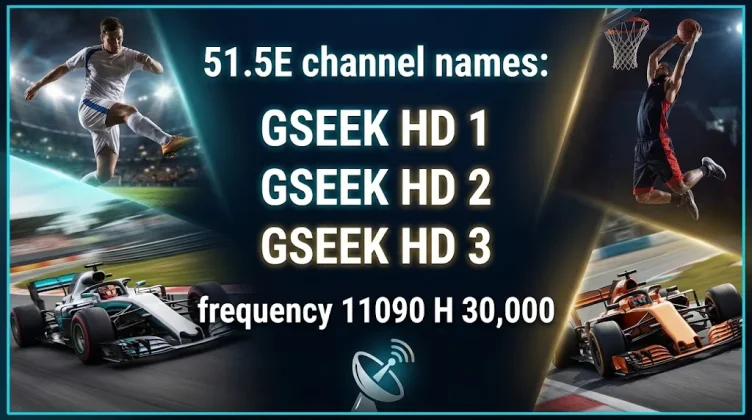
Unlocking live sports channels on satellite television requires up-to-date receiver software. The Gseek Sports Satellite Decoder Software delivers high-definition sports coverage directly to your dish setup. Upgrading your decoder keeps your system fast, secure, and ready for every live game.
What is Gseek Sports Software?
Gseek Sports software is custom firmware designed for digital satellite decoders. It optimizes receiver hardware for live sports streaming and satellite signals.
Key Benefits
-
Unlocks Premium Sports: Access popular sports channels directly on supported satellites.
-
Fixes Bugs & Lag: Removes menu freezes and improves channel-switching speed.
-
Auto-Key Updates: Supports automatic key decoding (such as Biss Keys and CAS service protocols).
-
High-Definition Output: Enhances video quality to 1080p and 4K output resolutions.
Compatibility Across Decoder Models
Gseek Sports software supports a wide range of decoder chipsets. Knowing your device chipset ensures you download the right file.
| Chipset Family | Popular Receiver Brands / Models | Key Feature |
| GX6605S / GX6622 | Tiger, Geant, Starsat, Alphabox | Fast boot times and low storage overhead |
| Ali 3510 / Ali 3526 | Premium, Starsat HD, Strong | High signal sensitivity and stable audio |
| Sunplus (1506G/1506TV/1507G) | Tiger, Realbox, Echolink | Easy USB flashing and online network updates |
| HiSilicon / Android Combo | Openbox, Octagon, Formuler | Ultra HD 4K support and app integration |
Important Note: Always match the firmware to your specific receiver model and CPU chipset. Flashing the incorrect software can permanently damage your decoder.
How to Install Gseek Sports Software via USB
Flashing your satellite decoder takes only a few minutes. Follow these simple steps carefully:
-
Download the File: Save the latest Gseek Sports software for your receiver model onto a PC.
-
Format Your USB Drive: Format a standard USB flash drive to FAT32.
-
Copy Firmware: Extract the downloaded file (usually
.binor.abs) to the root directory of the USB drive. -
Connect to Receiver: Plug the USB drive into your decoder’s USB port.
-
Start Upgrade: Go to Menu > Software Upgrade > USB Upgrade on your decoder screen.
-
Select File: Choose the Gseek software file and press OK.
-
Reboot Device: Wait for the installation to hit 100%. The decoder will restart automatically.
Essential Tips for a Smooth Upgrade
-
Keep Power On: Never unplug or turn off your decoder during a firmware update.
-
Backup First: Save your current channel list and system settings to USB before upgrading.
-
Factory Reset: Perform a factory reset after upgrading to ensure new features load cleanly.
Updating your decoder with Gseek Sports software ensures smooth, uninterrupted access to live matches, tournaments, and sports broadcasting. Keep your receiver updated to enjoy peak viewing performance!
Tiger Softwares GSEEK Sports
- Tiger Razer v2 software
- Tiger Razer v2 Gseek software
- Request software you need